
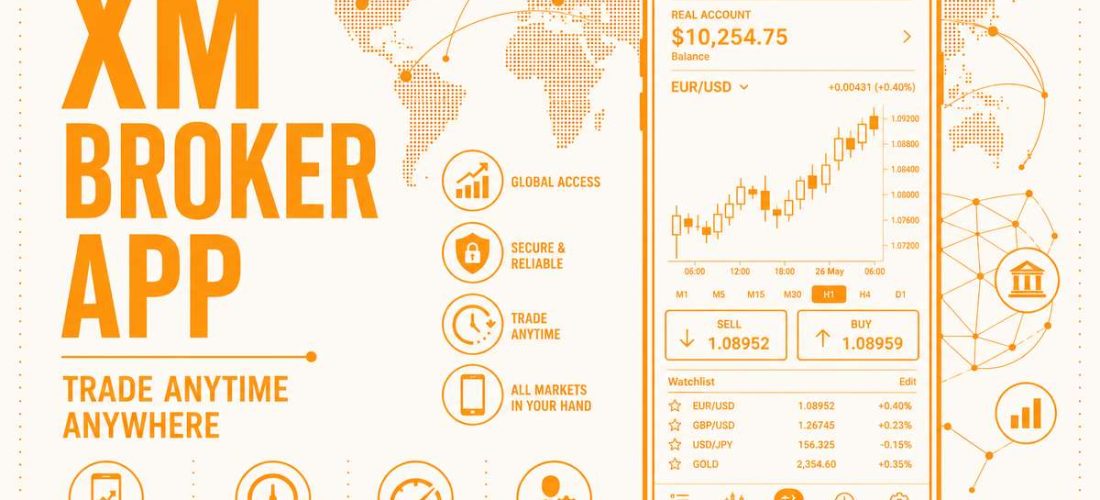
Let’s be real for a second. If you’re still glued to your desktop to check a single trade, you’re trading like it’s 2005. The world has moved to your back pocket, and so has smart money. Whether you’re waiting in line for coffee or pretending to listen on a Zoom call, the XM broker app puts the entire forex market right in the palm of your hand. No desk. No excuses. Just pure trading firepower wherever life takes you. In this guide, I’ll walk you through exactly how to get this bad boy on your iPhone or Android – no tech degree required.
Why Bother With the XM Mobile App?
Look, I get it. You’ve got a laptop. It works. You’ve got a mouse, a big screen, maybe even one of those fancy ergonomic chairs. So why on earth would you need a phone app? Because the market doesn’t care about your comfort zone. Prices don’t wait for you to finish your coffee. That breakout you’ve been watching for three days? It’ll happen while you’re standing in line at the grocery store. Guaranteed.
Here’s the cold, hard truth I learned after blowing up my first demo account years ago: timing is everything. A 5-minute delay can cost you 50 pips. And nothing causes a 5-minute delay like booting up a laptop, waiting for Windows to install updates, and then realizing your trading platform needs a password reset. By the time you’re in, the trade is toast.
That’s where the XM app download comes into play. This little piece of software turns your phone into a trading terminal. Not a watered-down “view-only” version. Not a clunky mobile website that crashes when you sneeze. A real, live, full-featured trading app from XM with one-tap execution, real-time charts, and instant order management.
Key Pluses of the XM Mobile App (At a Glance)
Here’s why hundreds of thousands of traders make the switch from desktop to mobile – and why you should too:
- One-tap trading – Open or close a position with a single tap. No confirmation dialogs, no lag, no missed opportunities while you fumble with a mouse.
- Real-time price alerts – Set the app to buzz you when any pair hits your level. Stop staring at screens like a zombie. Live your life. Let the app do the watching.
- Full account management – Deposit, withdraw, and check your balance right from the app. No need to log into a separate website or remember another password.
- Cross-device sync – Start a trade on your laptop, manage it on your phone. The app stays in perfect sync. I’ve done this dozens of times without a single glitch.
- 50+ technical indicators – Same tools as the desktop version. Moving averages, RSI, MACD, Bollinger Bands – it’s all there. No shortcuts, no stripped-down menus.
- Economic calendar built-in – See upcoming news events and set reminders. I can’t tell you how many times the calendar saved me from trading right before a Fed announcement.
- Biometric login – Use your fingerprint or Face ID. Logging in takes one second. Your grandma’s banking app has it. Why shouldn’t your trading app?
- Low data usage – The app is crazy efficient. I’ve traded for an entire week on less data than a single YouTube video. Perfect for spotty Wi-Fi or cheap phone plans.
Useful info for beginners: Most new traders make the exact same mistake. They open a position on their laptop, then go about their day with no way to manage it. The market reverses 100 pips against them, and they can’t do a thing because they’re driving, or cooking, or pretending to listen to their partner talk about work. Don’t be that person. The XM app lets you set stop-losses and take-profits on the go. You can even close a trade while waiting for your burrito. I’m not kidding.
Another hidden gem? Price alerts. You can set the app to buzz your phone when EUR/USD hits a certain level. No more staring at charts until your eyes bleed. Let the broker do the watching while you live your life. When that alert goes off, you open the app, check the chart, and pull the trigger. Easy money.
Now, let’s talk about Android users for a second because you guys have a special trick up your sleeve. Sometimes Google decides to play gatekeeper. Certain countries restrict trading apps on the Play Store. Maybe you live in one of those places. Maybe you just want the raw, unfiltered version of the app straight from broker‘s own servers. That’s why the XM APK exists. An APK is like a backstage pass. You install it yourself, no store required, no permission from Google needed. I’ll show you exactly how to do that in the next section without turning your phone into a paperweight.
Bottom line: If you’re serious about trading, you need the XM mobile app like a fish needs water. I’ve seen too many beginners get burned because they couldn’t react fast enough. They had the right idea, the right analysis, even the right entry. But they were chained to a desk while the market ran away from them. Don’t let that be your story. Download the app. Set up your alerts. And trade from anywhere, your couch, your car, or yes, even the bathroom. I won’t judge.
Android Users: Grab the XM APK (The No-Google Way)
Let me paint you a picture. You’re sitting on your couch, ready to download the XM app. You open the Google Play Store, type “XM” into the search bar, and… nothing. Or worse – you get a message saying “This app is not available in your country.”
Been there. It’s frustrating. But here’s the thing: Google doesn’t run the world. And neither does Apple. There’s always a back door.
That back door is called an XM APK. Think of an APK as the raw installation file – the digital DNA of an app. You don’t need anyone’s permission to install it. No Play Store approval. No region locks. Just you, the file, and your phone.
What Exactly Is an APK? (Explained Like You’re Five)
You know how a video game used to come on a disc? You’d pop that disc into your console and boom – game installed. An APK is the same idea, but for Android phones. It’s the file that contains everything the app needs to run. When you download from the Play Store, Google handles the file for you behind the scenes. When you use an XM APK, you’re grabbing that file yourself and telling your phone, “Install this. I trust it.”
Why Would You Even Need the APK?
Good question. Here are three situations where the APK saves the day:
- You live in a country where Google blocks trading apps. It happens more often than you think. Some governments or Google itself put up roadblocks. The APK doesn’t care about roadblocks.
- You want the absolute latest version. Sometimes the Play Store takes a few days to roll out updates. XM posts the newest APK on their website immediately.
- You don’t have Google services on your phone. Some phones (especially Huawei) don’t come with the Play Store at all. APK is your only option.
How to Download and Install the XM APK (Step-by-Step)

Alright, let’s get our hands dirty. Follow these steps exactly, and you’ll be trading in five minutes.
Step 1: Flip the “Unknown Sources” Switch
Open your phone’s Settings. Tap on Security (or Privacy – every Android phone is a little different). Look for a toggle that says “Install from unknown sources” or “Allow installation of apps from unknown sources.” Flip it on. Your phone will give you a scary warning about security risks. I get it. But here’s the thing – as long as you’re downloading the APK directly from the official XM website, you’re fine. Just don’t go grabbing APKs from random sketchy forums.
Step 2: Visit the Official XM Website
Open your browser – Chrome, Firefox, whatever you use. Go to the official XM website. Don’t trust any third-party APK sites. I’ve seen too many people download “free” apps that turned out to be malware in disguise. Stick to the source.
Step 3: Find the Android APK Download Link
Scroll to the bottom of the XM homepage or look for a “Mobile Apps” section. You’ll see a button that says something like “Download for Android (APK).” Tap it. The file will start downloading. It’s usually around 30-50 MB – nothing crazy.
Step 4: Open the File and Hit Install
Once the download finishes, swipe down from the top of your screen and tap the notification that says “Download complete.” Your phone will ask: “Do you want to install this app?” Tap “Install.” Give it about fifteen seconds.
Step 5: Open and Log In
Boom. You’re done. Open the app, log into your XM account (or create a new one if you’re brand new), and start trading.
A Word of Caution (Read This)
I’m not going to lie to you. Installing APKs comes with a tiny bit of risk – but only if you’re careless. Here’s my golden rule: Never download an APK from anywhere except the official XM website. Not from a random Reddit link. Not from a “free APK downloader” site. Not from a friend who says “trust me bro.” XM’s official website only. Follow that rule, and you’ll be fine.
Also, don’t forget to turn off that “Unknown Sources” toggle after you’re done installing. Flip it back to “off.” It takes two seconds and keeps your phone safer for everyday use.
What If You Just Want the Easy Way?
Not everyone wants to mess with settings and APK files. I respect that. Some days you just want to tap a button and call it a day. If that’s you, don’t worry – the next section covers the XM Play Store method. No settings. No scary warnings. Just search, tap, and install. Your call.
Bottom line for Android users: The XM APK is your freedom card. It lets you install the app no matter where you live or what restrictions Google throws at you. Just download it from the official XM website, follow the five steps above, and you’re in business. Don’t overthink it.
The Easy Route: XM Play Store Method (No Fuss, No Mess)
Let me be honest with you. Not everyone wants to wrestle with APK files, flip unknown sources switches, or feel like a hacker just to install a trading app. Some days you just want things to work. No drama. No tech support. Just tap, install, and go.
I respect that. In fact, most days I do the same thing.
That’s where the XM Play Store method comes in. It’s the trading equivalent of taking an elevator instead of climbing ten flights of stairs. Same destination. Way less sweat.
Who Is This Method For?
Raise your hand if any of this sounds like you:
- You’re not super comfortable with technology. You just want to trade, not troubleshoot.
- You live in a country where Google has no problem with forex apps (most of Europe, North America, Australia, and parts of Asia).
- You want automatic updates. The Play Store handles them for you while you sleep.
- You don’t want to mess with your phone’s security settings. Ever.
If you nodded along to any of those, the Play Store is your best friend.
Step-by-Step: How to Download XM from the Play Store
Grab your phone. I’ll walk you through it. Takes two minutes.
Step 1: Open the Google Play Store
That little rainbow triangle icon on your home screen. Tap it.
Step 2: Search for “XM”
Tap the search bar at the top. Type “XM” – not “XM trading,” not “XM forex,” just “XM.” The official app should be the first result. Look for the blue logo with white letters.
Step 3: Check the Developer Name
Here’s a pro tip I learned the hard way. Before you tap “Install,” scroll down and look at who made the app. It should say “XM Global” or “Trading Point Group.” Why does this matter? Because fake apps exist. Some shady characters publish knockoff trading apps to steal your login info. Always check the developer name. Always.
Step 4: Tap “Install”
You’ll see a green button that says “Install.” Tap it. The app will download and install automatically. No settings to change. No warnings to dismiss. Just a progress bar that fills up in about twenty seconds.
Step 5: Open and Log In
Once it’s installed, two buttons appear: “Open” and “Uninstall.” Tap “Open.” Log into your XM account. Done.
The Hidden Perk Nobody Talks About
Automatic updates. I can’t tell you how nice this is.
When you install from the XM Play Store listing, your phone updates the app all by itself. New feature? You get it. Security patch? You get it. Bug fix? You get it. No checking websites, no downloading new APK files, no reinstalling every few months. The app just stays fresh in the background while you go about your life.
With the APK method, you have to manually check for updates and reinstall every time. It’s not hard, but it’s an extra chore. The Play Store version? Set it and forget it.
One Small Catch (Read This)
The Play Store method isn’t perfect everywhere. I mentioned this earlier, but it’s worth repeating. Some countries – India, Indonesia, Pakistan, and a few others – have restrictions on forex trading apps in the Google Play Store. You might search for “XM” and see nothing. Or you might see the app but get a message saying “Not available in your country.”
If that happens, don’t panic. It’s not you. It’s Google being Google. Just scroll back up to Section 2 and use the APK method instead. Same app. Same features. Just a different way of getting it onto your phone.
iPhone Users: XM for iPhone (The Apple Way)
Apple people, you’re up. I see you over there, sipping your cold brew, wearing your AirPods, acting like Android users don’t exist. And you know what? I don’t blame you. The Apple ecosystem is smooth. Things just work. No weird settings to flip. No APK files to hunt down. No “Unknown Sources” warnings that make your heart skip a beat.
Getting the XM for iPhone app is about as hard as ordering a coffee. Maybe easier.
The Walled Garden (And Why It’s Actually Good Here)
You’ve probably heard people complain about Apple’s “walled garden.” You can only install apps from the official App Store. No side-loading. No APK equivalents. Some people hate this. But for a beginner trader? It’s a blessing.
Here’s why. Every single app in the Apple App Store gets reviewed by a human being before it goes live. Fake apps still slip through sometimes, but it’s rare. Much rarer than on Android. When you download XM for iPhone, you know you’re getting the real deal – not some knockoff designed to steal your password.
Step-by-Step: How to Get XM on Your iPhone
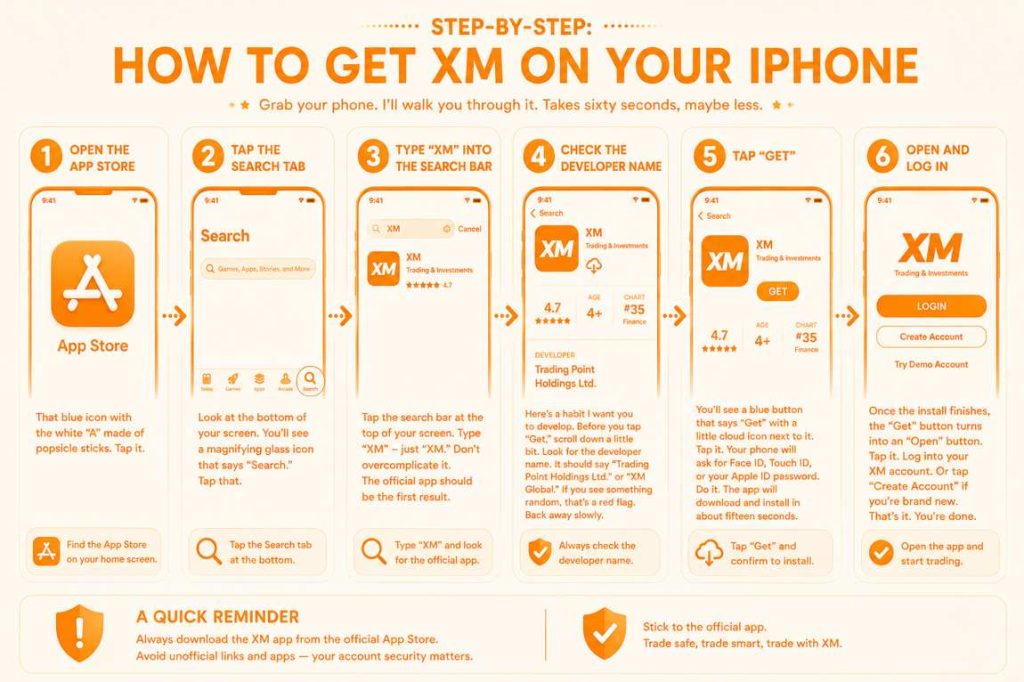
Grab your phone. I’ll walk you through it. Takes sixty seconds, maybe less.
Step 1: Open the App Store
That blue icon with the white “A” made of popsicle sticks. Tap it.
Step 2: Tap the Search Tab
Look at the bottom of your screen. You’ll see a magnifying glass icon that says “Search.” Tap that.
Step 3: Type “XM” into the Search Bar
Tap the search bar at the top of your screen. Type “XM” – just “XM.” Don’t overcomplicate it. The official app should be the first result. Look for the blue logo with white letters.
Step 4: Check the Developer Name
Here’s a habit I want you to develop. Before you tap “Get,” scroll down a little bit. Look for the developer name. It should say “Trading Point Holdings Ltd.” or “XM Global.” If you see something random like “Best Forex App 2024” with a weird email address, that’s a red flag. Back away slowly.
Step 5: Tap “Get”
You’ll see a blue button that says “Get” with a little cloud icon next to it. Tap it. Your phone will ask for Face ID, Touch ID, or your Apple ID password. Do it. The app will download and install in about fifteen seconds.
Step 6: Open and Log In
Once the install finishes, the “Get” button turns into an “Open” button. Tap it. Log into your XM account. Or tap “Create Account” if you’re brand new. That’s it. You’re done.
Face ID and Touch ID – The Killer Feature
Here’s something I absolutely love about XM for iPhone that Android users get jealous of. Face ID login.
Open the app, look at your phone, and boom – you’re in. No typing passwords. No fumbling with usernames. Just a quick glance and you’re staring at the charts. It takes one second. Maybe less.
If you have an older iPhone with Touch ID (the home button fingerprint sensor), that works too. Same speed. Same convenience.
To turn this on, go to the app’s settings after you log in. Look for “Biometric Login” or “Face ID.” Flip the switch. Thank me later.
What About iPad?
Good news. The XM for iPhone app works perfectly on iPad too. Just search the App Store the same way. Tap the “iPhone Only” filter at the top and change it to “iPad” if you want, but honestly the iPhone version scales up just fine. Charts are big, buttons are easy to tap, and everything runs smoothly.
One Small Headache (And How to Fix It)
Sometimes – and I’ve run into this myself – the App Store doesn’t show XM in the search results right away. You type “XM” and get some random game or a weather app instead. Annoying, right?
Here’s the fix. Search for “XM Global” or “Trading Point” instead. That usually brings up the app immediately. I don’t know why Apple’s search algorithm acts up sometimes, but this trick works every time.
If that still doesn’t work? You might be in a country where Apple restricts forex apps. It’s rare, but it happens. In that case, you’re out of luck with the iPhone – Apple doesn’t allow APK-style side-loading. Your only option is to use XM’s mobile website in Safari. It’s not as good as the app, but it gets the job done.
What You Get Inside the XM App (Features That Actually Matter)
So you’ve downloaded the app. Good for you. But now what? You open it up and see charts, buttons, numbers moving up and down. It can feel like looking at the cockpit of a 747.
Let me walk you through the features that actually matter – the ones I use every single day. No fluff. No jargon that doesn’t matter. Just the good stuff.
Real-Time Price Streaming (The Obvious One)
This one’s a no-brainer, but let’s talk about it anyway. The XM app shows you live prices for forex pairs, commodities, indices, and stocks. Prices update every fraction of a second. No delay, no lag, no spinning wheel of death.
I’ve tested this side by side with my desktop. Same speed. Same quotes. Same execution. The app doesn’t hold anything back.
One-Tap Trading (Your New Best Friend)
Here’s where the app beats the desktop version hands down. One tap.
You see a setup you like. You tap the Buy or Sell button. The trade opens. Done. No confirmation pop-ups. No “Are you sure?” messages. No extra clicks that cost you precious seconds.
Let me tell you a quick story. Last month, I was waiting for a train. I saw GBP/USD break a key level. I opened the app, tapped Buy, and was in the trade in under three seconds. By the time I found a seat on the train, I was up fifteen pips. Try doing that with a laptop.
Price Alarms (Set Them and Forget Them)
I don’t stare at charts all day. I have a life. You have a life. Nobody should be glued to a screen for eight hours waiting for a trade setup.
That’s why price alarms exist. You set a level – say, EUR/USD at 1.1000 – and the app buzzes your phone when the price gets there. Then you open the app, check the chart, and decide whether to jump in.
I have about ten alarms running at any given time. They cover my back while I’m at the gym, cooking dinner, or pretending to listen in a meeting. Let the app do the watching. You do the living.
Full Order Management (Stop-Losses and Take-Profits)
This is the feature that saves beginners from blowing up their accounts. Stop-losses.
You can set a stop-loss right when you open a trade – or add one later. The app lets you drag the line up and down on the chart. No typing numbers into tiny boxes. Just tap, drag, release. Done.
Take-profits work the same way. Set your target, and the app closes the trade automatically when the price gets there. You don’t have to watch anything. Set it and walk away.
50+ Technical Indicators (For the Chart Lovers)
If you’re into technical analysis, the XM app has you covered. Moving averages, RSI, MACD, Bollinger Bands, Ichimoku, Fibonacci – all of it.
You add indicators the same way you do on desktop. Tap the chart, hit “Indicators,” pick what you want. They calculate in real time. No lag.
I’ll be honest though. As a beginner, you don’t need fifty indicators. Pick two or three. Learn them. Master them. Ignore the rest. I personally only use a 20-period moving average and RSI. That’s it. The other forty-eight might as well not exist.
Economic Calendar (Know When to Stay Out)
Here’s a lesson I learned after losing money. Never trade five minutes before a major news announcement.
The XM app has a built-in economic calendar. It shows you when the Fed speaks, when jobs numbers come out, when inflation data drops. You can set reminders so your phone buzzes fifteen minutes before each event.
Why does this matter? Because prices go crazy around news time. Spreads widen. Slippage happens. Beginners get wrecked. The calendar helps you stay out of the line of fire.
One-Minute Withdrawals and Deposits (Yes, Really)
You can deposit and withdraw right from the app. Same speed as the website. Most methods are instant – credit cards, e-wallets like Skrill and Neteller, even some local bank transfers.
I’ve done withdrawals while sitting at a bar. Seriously. Opened the app, requested a withdrawal, and the money was in my Skrill account before my drink arrived. You can’t beat that.
Which Features Should You Actually Use as a Beginner?
Don’t try to use everything at once. You’ll get overwhelmed and give up. Here’s my recommended starter pack:
| Feature | Why You Need It | How Often to Use |
|---|---|---|
| Price alarms | So you don’t have to watch charts all day | Set 5-10 daily |
| Stop-loss | To protect your money | Every single trade |
| One-tap trading | To enter fast without fumbling | Every trade |
| Economic calendar | To avoid news spikes | Check every morning |
| Charts with 1-2 indicators | To find trade setups | Every trade |
That’s it. You don’t need the other forty-eight indicators. You don’t need automated trading scripts. You don’t need social trading feeds. Start simple. Add features as you get comfortable.
Bottom line: The XM app is packed with tools, but you don’t have to use all of them. Focus on price alarms, stop-losses, one-tap trading, the economic calendar, and a simple chart. Master those five things, and you’ll be ahead of 90% of beginners.
Troubleshooting: When the XM App Acts Up (And How to Fix It)
No app is perfect. Not even the XM app. Sometimes things go sideways. Here’s how to fix the most common problems fast.
Problem #1: “Login Failed”
You typed your password right, but the app says no.
The fix: Look for “Change server” on the login screen. Switch from “XM Real” to “XM Demo” (or the other way around). This trips up almost every beginner when they first download XM broker app.
Problem #2: App Won’t Install (Android)
Fix #1 – Free up space. The app needs about 150 MB. Delete old photos.
Fix #2 – Re-download the APK. If you’re using the XM APK method, you might have a corrupted file. Delete it and grab a fresh XM APK download from the official XM website. Never use third-party APK sites.
Fix #3 – Check your Android version. Needs Android 7.0 or newer.
Problem #3: App Won’t Install (iPhone)
Fix #1 – Update iOS. The XM for iPhone app needs iOS 13 or newer.
Fix #2 – Check your country. Some regions block trading apps. If the App Store shows nothing, you’re out of luck. Use XM’s mobile website instead.
Fix #3 – Free up space. Same as Android.
Problem #4: No Push Notifications
Your price alarms are set, but your phone stays silent.
On Android: Settings → Apps → XM → Notifications → turn everything on. Also turn off “Battery optimization” for the XM app.
On iPhone: Settings → Notifications → XM → enable everything.
Nuclear option: Uninstall the XM app, restart your phone, reinstall. If you’re on Android, do a fresh XM APK download. Works 80% of the time.
Problem #5: Charts Are Laggy
Fix: Go to Settings in the XM app → Clear Cache. Deletes old junk data. Doesn’t delete your account.
Also check your internet. Below 5 Mbps? Switch to mobile data.
Problem #6: “Connection Lost”
Your phone lost contact with XM’s servers. Don’t panic. Your trade is still active.
Fix: Close the XM app completely. Open it again. Log back in. Close your trade if you need to.
Prevention: Don’t trade on bad Wi-Fi. Don’t trade on the subway.
When All Else Fails
XM has 24/7 live chat inside the XM app. Tap profile → Support. Real humans reply in a minute or two.
Bottom line: Clear your cache. Check your server. Turn on notifications. Update your phone. If that doesn’t work, hit up live chat.
Conclusion: Stop Thinking, Start Trading
Look, you’ve got all the info. You know how to grab the XM app on Android or iPhone. You know the difference between the XM APK and the XM Play Store route. You even know how to fix the app when it acts up.
So what’s stopping you?
The market doesn’t wait. Every minute you spend reading is a minute someone else is out there grabbing pips. Not because they’re smarter than you. Because they already downloaded the app and started.
Here’s the truth I learned after years of trading. The perfect moment doesn’t exist. You’ll never feel 100% ready. The trick is to start small. Download the XM for iPhone app or grab that XM APK download for your Android. Open a demo account. Tap a few buttons. See how it feels.
Then, when you’re comfortable, put five bucks in. Just five. Trade tiny. Lose a little. Win a little. Learn the ropes without risking your rent money.
That’s how you do it. Not by reading ten more guides. Not by watching another YouTube video. By doing.
So here’s your to-do list – right now, before you forget:
- Open the App Store (iPhone) or Google Play Store (Android)
- Search for “XM” and tap “Install” – or grab the XM APK from their website if Play Store says no
- Create a demo account (takes two minutes)
- Set one price alarm on EUR/USD
- Come back when it buzzes and see what happened
That’s it. Five steps. Fifteen minutes. You’re in the game.
Now go do it. I’ll see you on the other side.
FAQ: Quick Answers About the XM App
1. Is the XM app free to download?
Yes. 100% free. You don’t pay a cent to install the XM app on iPhone or Android. The only money involved is when you decide to deposit and start trading.
2. Which is better – the Play Store version or the XM APK?
Same app. Same features. Same speed. The XM Play Store version updates automatically. The XM APK is for people who live in countries where Google blocks trading apps. Pick whichever works on your phone.
3. Can I use the same account on my phone and laptop?
Absolutely. Your XM account works everywhere. Start a trade on your laptop, close it on your phone. The app syncs instantly.
4. Does the XM for iPhone app have all the same charts as the desktop version?
Yes. 50+ indicators, real-time streaming, one-tap trading. Nothing is cut. The XM for iPhone app is a full trading terminal, not a watered-down mobile toy.
5. What if I delete the app by accident?
No worries. Just do another XM app download from the App Store, Google Play, or the official XM website (APK). Log back in. Your account and your open trades are still there – they live on XM’s servers, not on your phone.
6. Why does my phone say “Install blocked” when I try the XM APK?
You forgot to flip the “Unknown Sources” switch. Go to Settings → Security → Enable “Install from unknown sources.” Then try again. Turn it back off after you’re done installing.
7. Can I withdraw money straight from the app?
Yes. Tap your profile icon and then Withdraw. Most methods are instant. I’ve done withdrawals from the XM app while waiting for coffee. Money hit my Skrill account before my latte was ready.


